Dashboard
The Dashboard is the first page you see when you open the app. It answers the questions you have every morning: which purchase orders are late, what's arriving this week, what you need to reorder, and how much you've been buying.
Open it any time with Dashboard in the main menu.
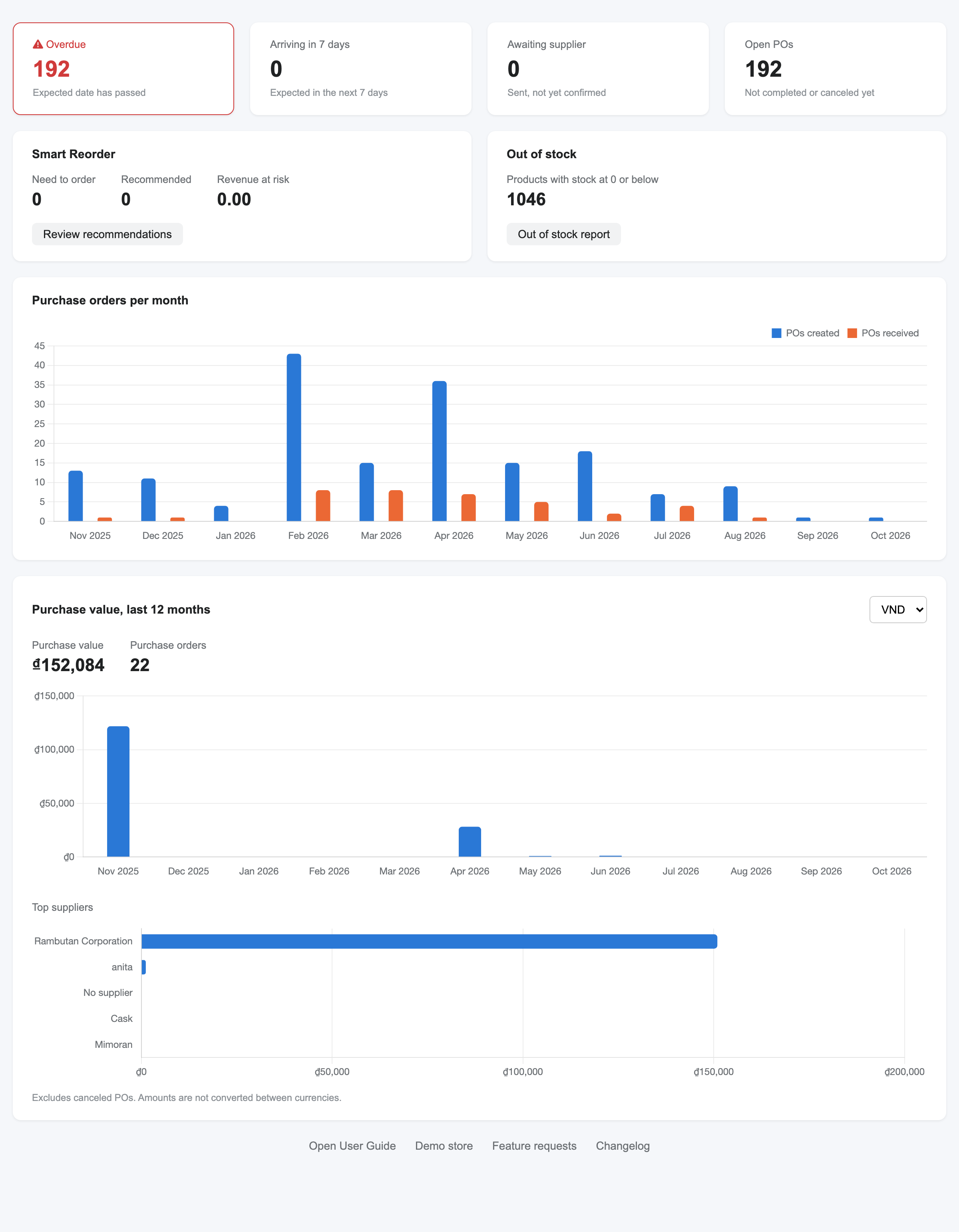
From top to bottom, the page shows:
- Four purchase order tiles: Overdue, Arriving in 7 days, Awaiting supplier and Open POs.
- Smart Reorder and Out of stock.
- Purchase orders per month, a chart of the last 12 months.
- Purchase value, last 12 months, with your top suppliers.
- Quick links to the User Guide, the demo store, feature requests and the changelog.
Purchase order tiles

Each tile counts your purchase orders. Click a tile to open the Purchase Orders list already filtered to the same POs, so the number on the tile matches the number of rows in the list.
| Tile | What it counts |
|---|---|
| Overdue | Open POs whose Expected date is before today. The tile turns red when there is at least one. |
| Arriving in 7 days | Open POs whose Expected date is today or in the next 7 days. |
| Awaiting supplier | POs with the status Sent to supplier: the supplier hasn't accepted or confirmed them yet. |
| Open POs | All POs that aren't finished yet. |
An open PO is one whose status is Pending, Sent to supplier, Supplier Accepted, Supplier Unaccepted, Confirm or Receiving. Completed, Closed and Canceled POs don't count.
Overdue and Arriving in 7 days use the PO's Expected date. A PO without an expected date never shows up in these two tiles, so fill it in when you create a PO (see Create a purchase order).
Example: you see Overdue 3. Click the tile: the Purchase Orders list shows the 3 open POs whose expected date has passed. Open each one to chase the supplier or update the expected date.
Smart Reorder

The Smart Reorder card is a short summary of the Smart Reorder page:
| Field | Meaning |
|---|---|
| Need to order | Products that will run out before a new order would arrive. Order these first. |
| Recommended | Products that are fine today but should go on your next order. |
| Revenue at risk | Sales you could lose because products run out before a new order arrives. |
Click Review recommendations to open Smart Reorder and create purchase orders from the list.
If you plan from a past sales period or for the next X days (see Plan from a past sales period), the card also shows a Based on: line, so you know which plan the numbers come from.
What the card shows depends on your plan:
- Ultimate, with recommendations ready: the three numbers above and Review recommendations.
- Ultimate, before the first calculation: Get started, which opens Smart Reorder.
- Free and Professional: Upgrade to Ultimate · 7-day free trial, which opens the Smart Reorder page with what it does and how to upgrade.
Out of stock
The Out of stock card counts the products (variants) whose stock is 0 or below. Products that don't track inventory in Shopify aren't counted. The number is the same as in the Out of stock report: click Out of stock report to see the list.
Purchase orders per month
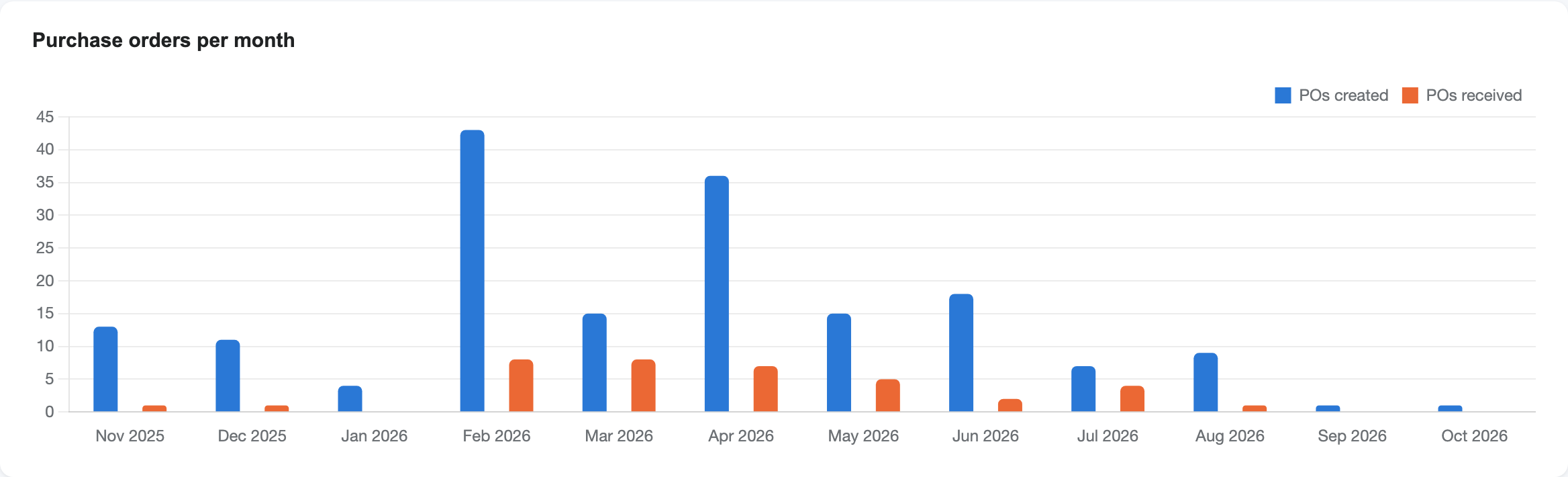
The chart shows the last 12 months, including the current month:
- POs created (blue): purchase orders by their PO date. Canceled POs aren't counted.
- POs received (orange): purchase orders that had at least one receiving in that month. A PO received in two months counts once in each month. Receivings you undid aren't counted.
Hover over a bar to see the exact number. Use it to spot busy months, or months where you created many POs but received few.
Purchase value, last 12 months
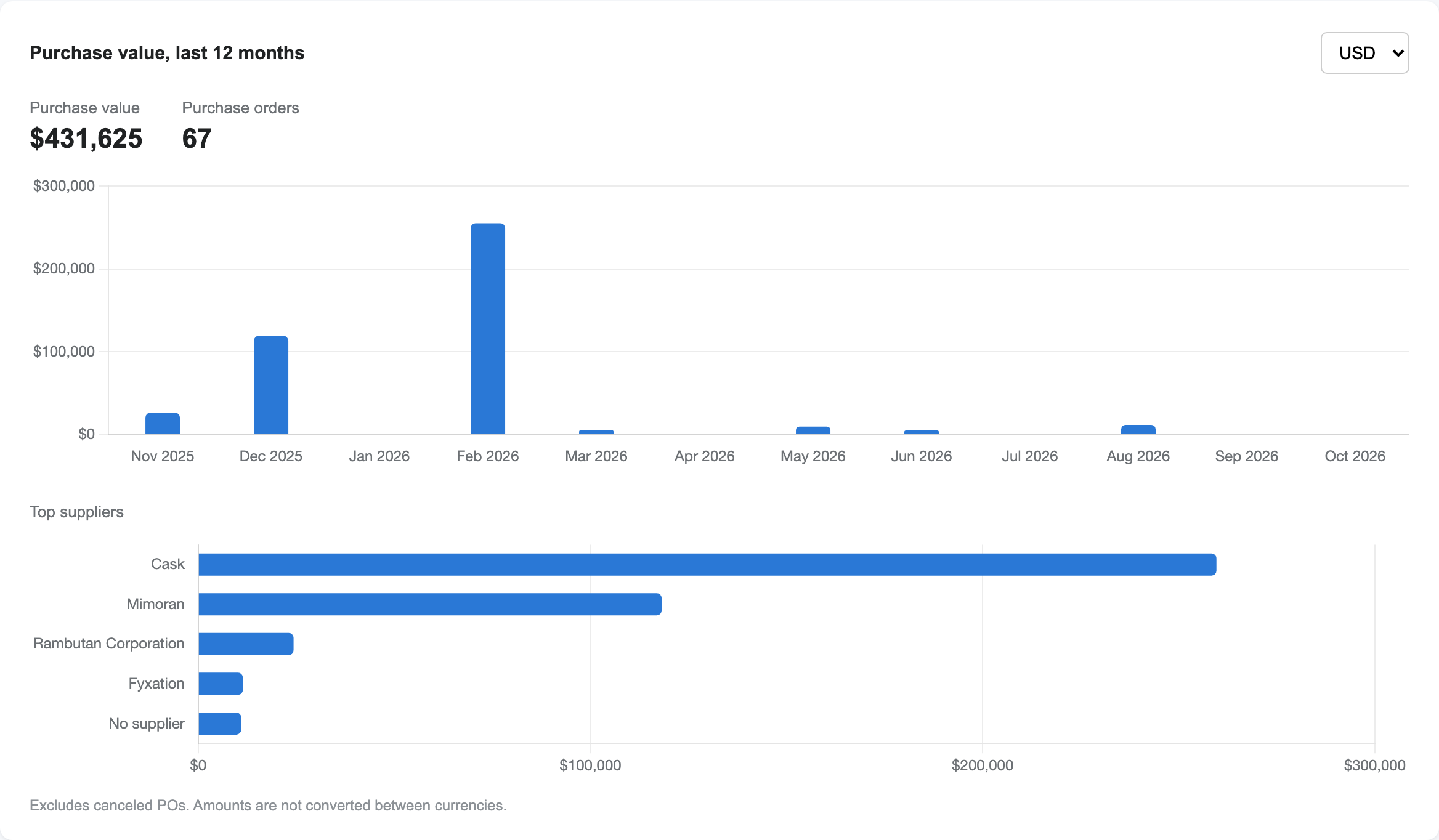
This card shows how much you've ordered in the last 12 months:
- Purchase value: the total of your purchase orders, using the same total as the Total column on the Purchase Orders list.
- Purchase orders: how many POs make up that total.
- A bar chart of the value per month, by PO date.
- Top suppliers: the 5 suppliers you ordered the most from. POs without a supplier are grouped as No supplier.
Canceled POs aren't counted. For a Closed PO, only the quantities you actually received count, because the rest was moved to a new PO when you closed it, and counting both would count it twice.
Currency
The app never converts amounts between currencies. When your POs use several currencies, a currency picker appears at the top right of the card: pick a currency to see only the POs in that currency. The card starts with your store currency.
Example: you buy from a supplier in USD and from another one in EUR. Pick USD to see the USD total and top suppliers, then EUR for the others.
The card loads a moment after the rest of the page. If you haven't created any purchase orders in the last 12 months, it shows No purchase orders in the last 12 months.
Your plan
The badge at the top right of the main menu shows your plan:
- On the Free plan, it shows how many purchase orders you've created this month out of your free allowance (for example 3/5) next to an Upgrade button. The count turns orange once you've used them all.
- On Professional and Ultimate, it shows the plan name.
Hover over the badge to see what your plan includes and what the next plan adds, and click it to open the Subscription page.
Quick links
At the bottom of the Dashboard:
- Open User Guide: this guide.
- Demo store: try every feature of the app with sample data.
- Feature requests: email us an idea or a feature you need.
- Changelog: what's new in the app.
FAQ
The Overdue tile shows a PO I've already received. The PO is still open (for example Receiving, with some products not received yet). Receive the rest, or complete or close the PO, and it leaves the tile.
Why doesn't Purchase value match my accounting? The card adds up PO totals in each currency without converting them, and counts Closed POs by the received quantities. Use the Goods Received - Invoice Status report or export your POs when you need figures for accounting.
The Smart Reorder card shows 0 everywhere. Either nothing needs ordering right now, or the app is still learning from your sales. Open Smart Reorder to check when the recommendations were last calculated.