Received By PO report
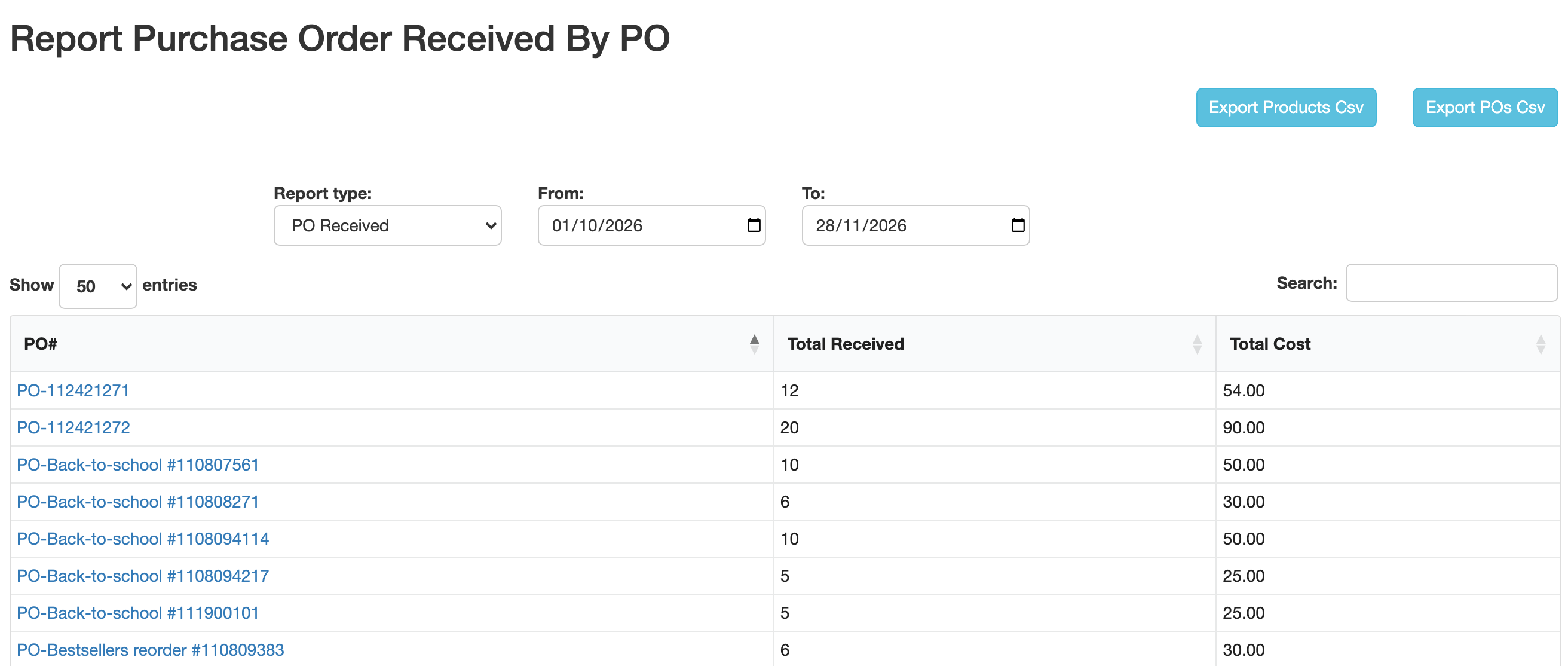
The Received By PO report shows, for each purchase order, how many units you received and what they cost, over the period you choose. Use it to check what came in this month, to see the value of the goods received from each PO, or to get a total of everything received for your accounts.
Go to Reports > Purchase Orders > Purchase Order Received By PO. The report is available on paid plans.
Choose the period
Use From and To to pick the period. The report counts the goods received during that period, based on the date of each receiving, not the PO date. A PO received in two deliveries, one inside the period and one outside, only counts the delivery inside it.
Leave both dates empty to see everything you've ever received. The page reloads as soon as you change a date.
Report type switches to the other purchase order reports (Qty Ordered, Qty Received, Total, Incoming Stock, Average Cost, Compare Supplier Costs).
Columns
Each row is one purchase order with at least one receiving in the period.
| Column | What it shows |
|---|---|
| PO# | The PO number. Click it to open the PO. |
| Total Received | All units received on this PO during the period, all products together. |
| Total Cost | For each product received: units received × the cost on the PO line, added up. |
Example: a PO has 2 products: Pencil at 4.50 and Notebook at 2.00. In October you received 12 pencils and 5 notebooks. With From 01/10 and To 31/10, the row shows Total Received 17 and Total Cost 12 × 4.50 + 5 × 2.00 = 64.00.
Total Cost uses the cost you entered on the PO line, before the line's Discount (%) and Tax (%). PO-level discount, shipping, tax and extra fees aren't included, so it can differ from the total on the PO page.
Receivings you undid with Undo receive are still counted in this report.
Totals
Below the table, Total Received and Total Cost add up every PO in the period.

The totals always cover all the POs in the period. Typing in Search narrows the table but doesn't change the totals.
Search, sort and pages
- Search: type part of a PO number to show only matching POs.
- Click a column header to sort by it, and click again to reverse the order. For example, click Total Cost twice to see the POs with the largest value received first.
- The report shows 50 POs per page. Change it with Show ... entries, and use Previous, Next or a page number to move between pages.
The report loads one page at a time, so it opens quickly even with years of receiving history.
Export to CSV
Both exports use the period you picked. Search and sorting aren't applied to the files.
- Export POs Csv downloads
PO_Received_Report_<date>.csv: one row per PO withPO#,Total ReceivedandTotal Cost, and a last row with the totals. - Export Products Csv downloads
PO_Products_Received_Report_<date>.csv: one row per product variant, all POs together, withProduct ID,Item name,Vendor name,Total quantityandTotal cost. Use it to see which products you received the most of, or how much you spent per vendor.
FAQ
A PO I received isn't in the report. Check the period: the receiving date has to be between From and To. Clear both dates to see all receivings.
Total Cost shows 0.00. No cost was entered on the PO lines that were received. Open the PO and enter the cost; the report updates right away.
The totals didn't change when I searched. That's expected: the totals cover every PO in the period. To add up some POs only, export the CSV and add up the rows you need.