Print Barcode Labels
Print barcode labels for your products and stick them on items as they arrive. Labels print on:
- Thermal label printers (Dymo, Zebra, Rollo...): one label per page, in common roll sizes or a custom size.
- Sheets of labels on A4 or Letter paper (Avery L7159, Avery L7651, Avery 5160).
Set up your label designs
A label design saves everything about a label: its size, what's printed on it and how it's laid out. Save one design for each kind of label you use, for example a small shelf label and a larger box label, and pick the design when you print.
Go to Settings > Barcode Labels to see your designs.
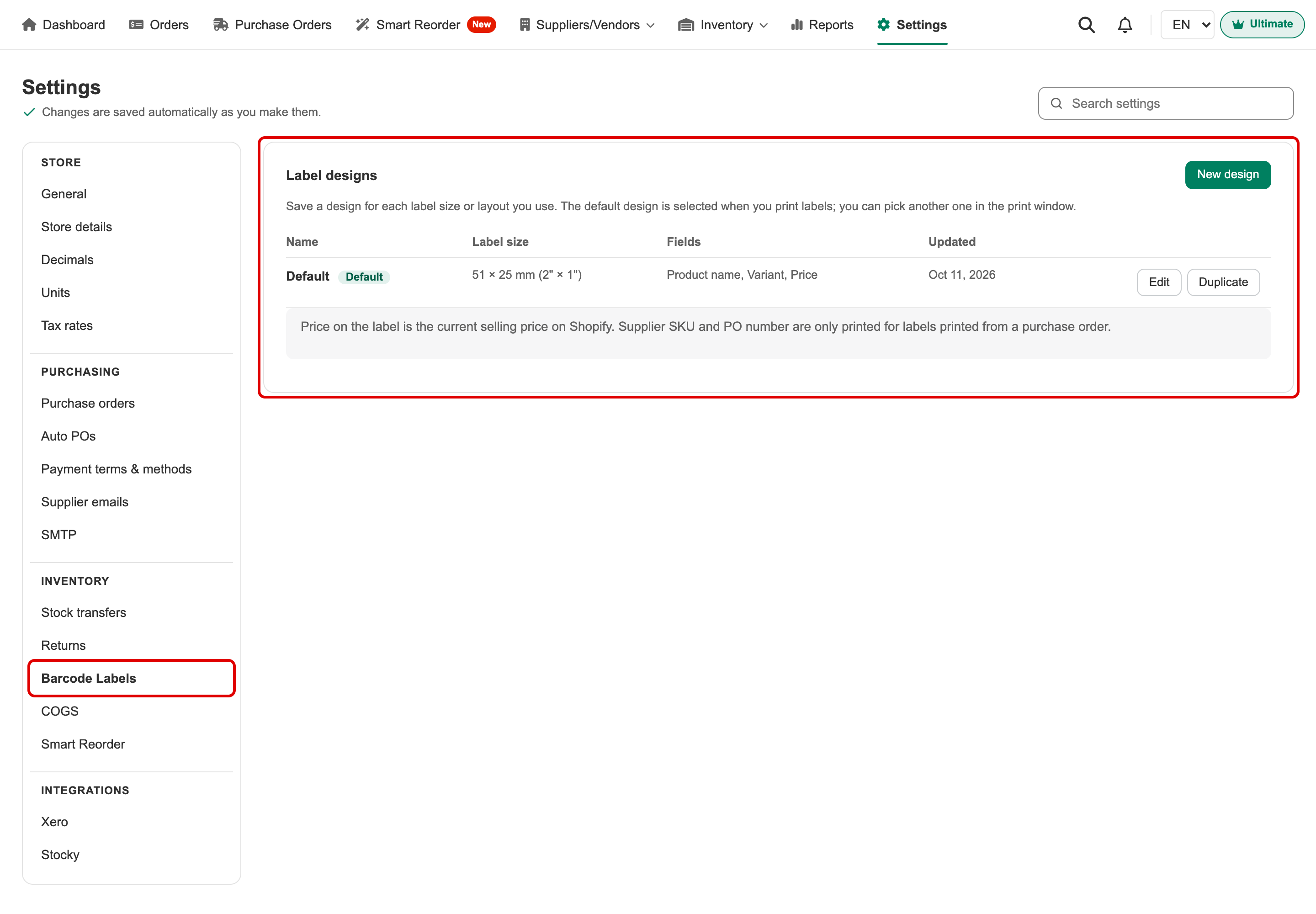
- New design: create a design from scratch.
- Edit: change a design.
- Duplicate: copy a design, then change the copy, for example to make the same layout in another size.
- Set as default: the default design is selected when you open the print window. You can still pick another design each time you print.
- Delete: remove a design. The default design can't be deleted; set another design as default first.
Your first design, Default, is created from the label settings you had before, so your labels print exactly as they did. You can have up to 20 designs.
Edit a design
Click New design or Edit. Change the settings on the left; the preview on the right updates as you go. Click Save when you're done.
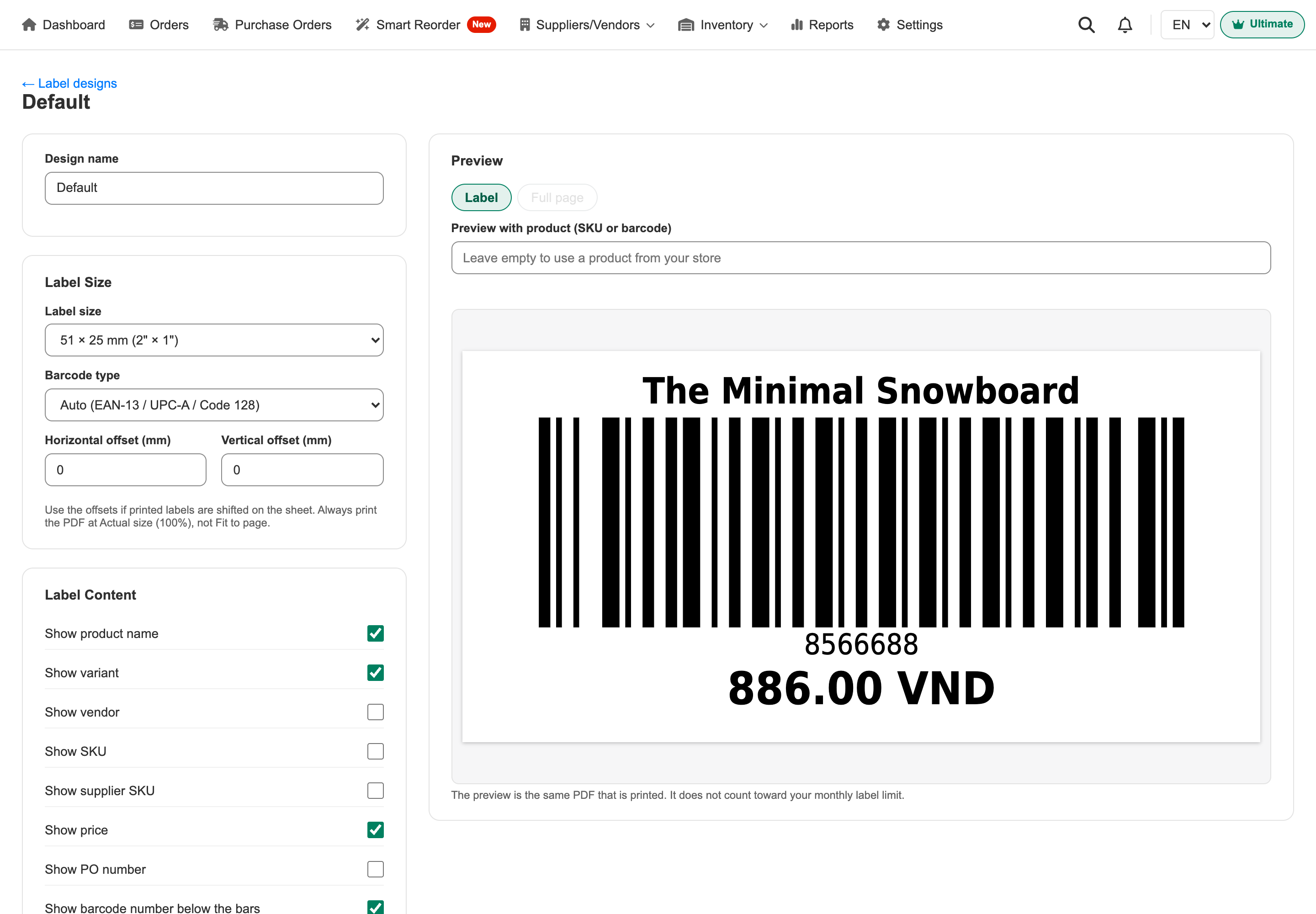
Label Size
- Label size:
- Thermal roll: 51 × 25 mm (2" × 1"), 57 × 32 mm (Dymo 11354), 102 × 51 mm (4" × 2"), or Custom size. With Custom size, enter the width and height of your labels in mm.
- Sheet: A4 Avery L7159 (24 labels), A4 Avery L7651 (65 labels), Letter Avery 5160 (30 labels).
- Barcode type: keep Auto unless you have a reason to change it. Auto prints EAN-13 or UPC-A when the product's barcode is a valid EAN-13 or UPC-A number, and Code 128 for everything else.
- Horizontal offset / Vertical offset (mm): if the printed labels are slightly off on the sheet, move them by a few millimetres. A positive number moves them right or down, a negative number left or up.
Label Content
Turn on what goes on the label: product name, variant, vendor, SKU, supplier SKU, price, PO number and the barcode number under the bars.
- Price is the product's current selling price in Shopify.
- Vendor is the product's vendor in Shopify.
- Supplier SKU and PO number are only printed when you print from a purchase order or a receiving.
- Use SKU when a product has no barcode: when this is on, products without a barcode get a barcode made from their SKU. When it's off, those labels have no barcode.
Layout
- Text size: Auto sizes the text to fit the label height. Pick a size (5–14 pt) to make it bigger or smaller.
- Text alignment: Center or Left.
- Barcode height: Auto gives the bars all the space left after the text. Pick a height (4–25 mm) for a fixed height; it never goes beyond the space left on the label.
- Line order: use ▲ and ▼ to move the product name, variant, vendor, SKU line, barcode and price up or down. Lines that are turned off, or empty for a product, are skipped.
Preview
- Label shows one label. Full page shows a whole sheet of labels (sheet sizes only).
- The preview uses a product from your store. To check a particular product, type its SKU or barcode in Preview with product (SKU or barcode).
- If that product has no barcode, a note tells you what will be printed instead.
- The preview is the same PDF that gets printed, and it doesn't count toward your monthly label limit.
Where to print labels
| Page | How | Number of labels |
|---|---|---|
| Purchase Orders (list) | Tick one or more POs (up to 50), then click Print barcode labels | Ordered quantity |
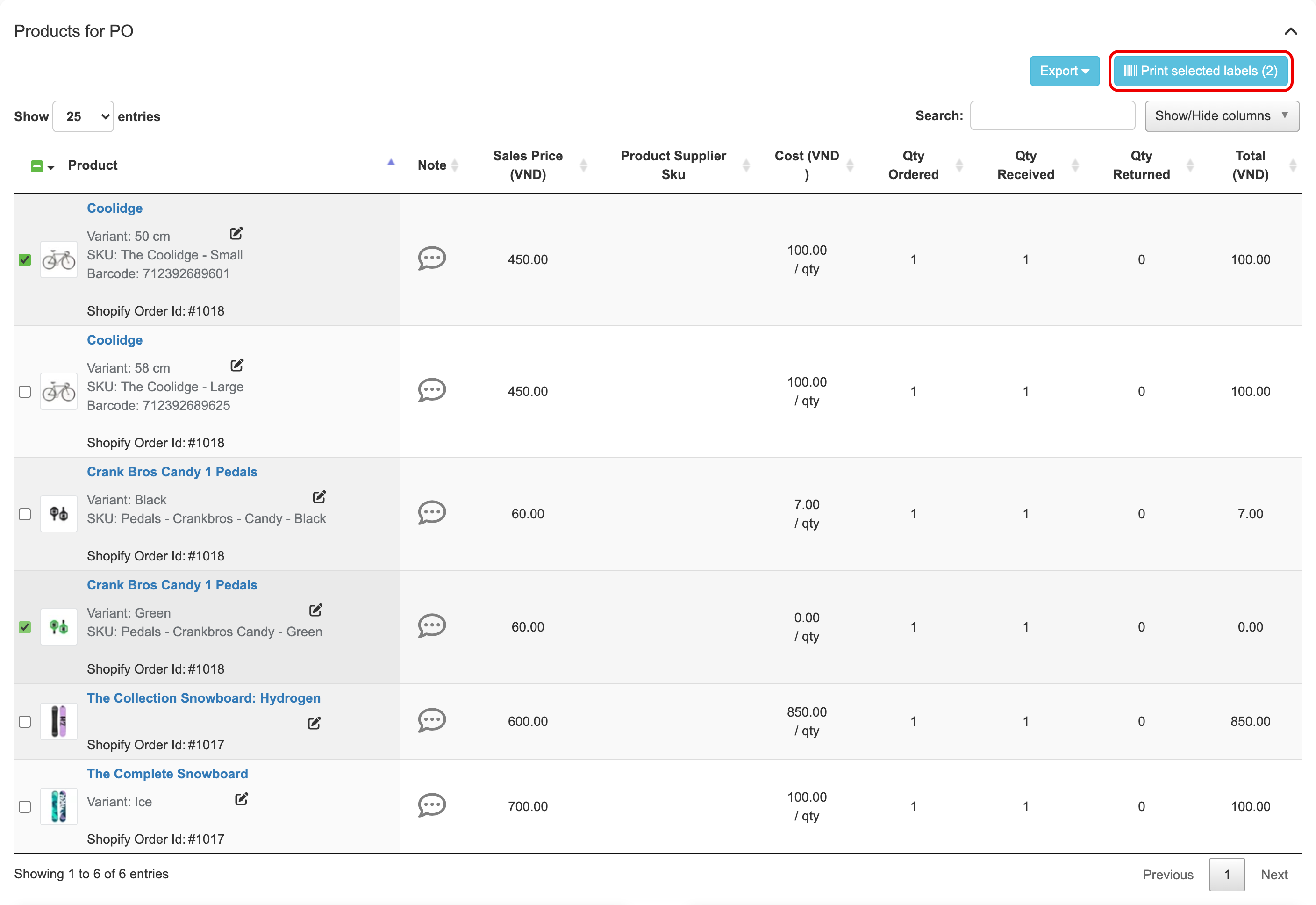
| Purchase order page | Tick the products, then click Print selected labels, next to Export above the product list | Ordered quantity |
| Receiving History on a purchase order | Click Labels on the receiving | Quantity received in that receiving |
| Receiving detail page | Tick the products, then click Print selected labels above the product list | Quantity received |
| Inventory > Stock In Locations | Tick the products (up to 500), then click Print barcode labels | 1 per product |
| Stock Take / Stock Adjustment | Tick the products, then click Print selected labels | Counted / new quantity |
Pick the products to print
On a purchase order, a receiving, a Stock Take, a Stock Adjustment and Stock In Locations, each product has a checkbox next to its name. Tick only the products you need labels for, so the print file holds just those labels.
-
Your ticks stay as you move between pages of the product list. Pick products on page 1, go to page 3 and pick more, then print them all at once. The number on the button shows how many products you've picked.
-
The checkbox at the top of the Product column ticks or clears every product on the page you're looking at.
-
The ▾ menu next to it has three options:
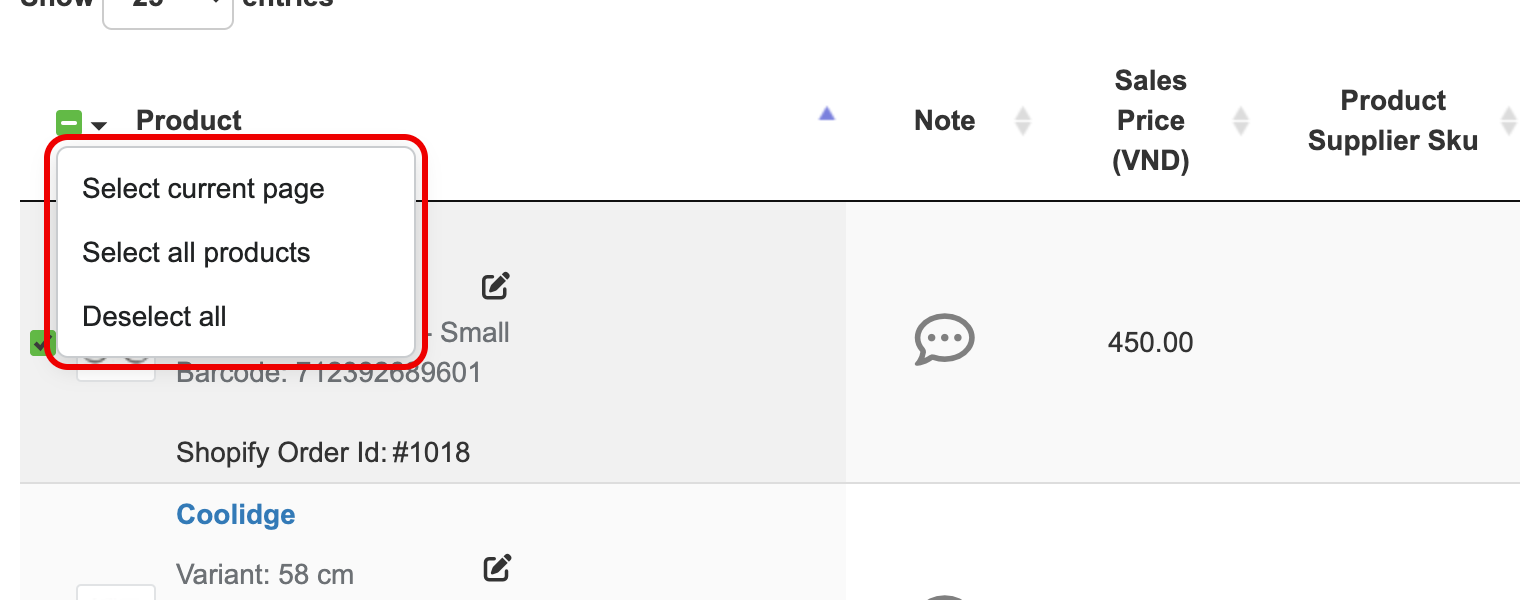
- Select current page: ticks every product on the page you're looking at.
- Select all products: ticks every product on every page. If you've typed in the Search box, it only ticks the products that match. On Stock In Locations, it also follows the location you're viewing, up to 500 products.
- Deselect all: clears all your ticks, on every page.
-
If you click Print selected labels before ticking a product, a message asks you to select at least one product.
Ticks are cleared when you reload or leave the page. To print labels for every product, choose Select all products, then click Print selected labels.
Print labels
Step 1: Tick the products you want, then click Print selected labels (on the Purchase Orders list and Stock In Locations, Print barcode labels). On a purchase order, the button is next to Export above the product list.
The Print barcode labels window opens with the products you picked and the number of labels for each.
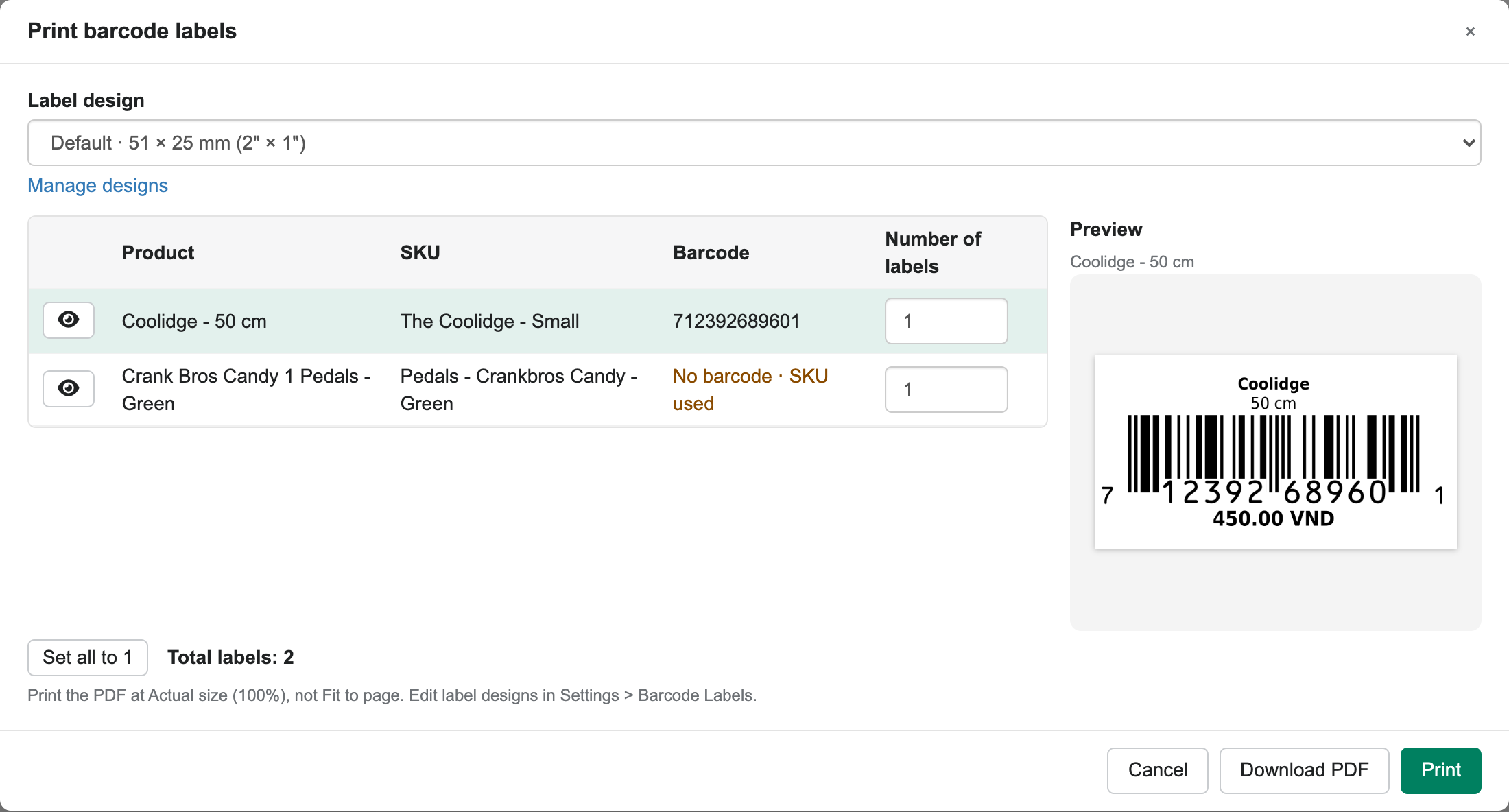
Step 2: Pick the Label design. The default design is selected for you. Click Manage designs to add or change designs.
- The Preview on the right shows the label for the first product. Click the eye button on any row to see that product's label. The preview follows the design you pick.
- No barcode in the Barcode column means the product has no barcode. If the design uses the SKU instead, you'll see SKU used; otherwise that label prints without bars.
- With a sheet design, if the sheet is already partly used, set Start at label position to the first empty label. Labels are counted left to right, top to bottom. For example, on a 3-column sheet whose first row is used, enter 4.
Step 3: Change Number of labels for any product if needed. Click Set all to 1 to print one label per product.
Step 4: Click a button:
- Print: opens your browser's print dialog. Choose your label printer and print.
- Download PDF: saves the labels as a PDF file to print later.
Always print at Actual size (100%). Don't use Fit to page, or the labels won't line up with your label paper. For a thermal printer, also set the paper size in the print dialog to your label size.
If the print dialog doesn't open (this can happen in some versions of Safari or Firefox), click open the PDF and print it from there in the print window.
Example labels
A 51 × 25 mm thermal label with SKU turned on:

An A4 Avery L7159 sheet that started at label position 4:

Limits
- Free plan: 100 labels per month. The print window shows how many you've used. Paid plans: unlimited.
- Up to 2,000 labels per print, 50 POs from the Purchase Orders list, or 500 products from Stock In Locations at a time.
- Very long SKUs printed as a barcode on small labels can come out too thin to scan. Use a larger label or give the product a real barcode in Shopify.