Outstanding items warning
When you already have open purchase orders and you start a new one, it's easy to order a product again that's still on its way. A PO that's only partly received is the classic trap: your shelf may be empty, so the product looks like it needs ordering, but the rest of the units are still coming from the supplier.
The outstanding items warning shows you, while you build a purchase order, which products are still on order in your other open POs and how many units haven't arrived yet:
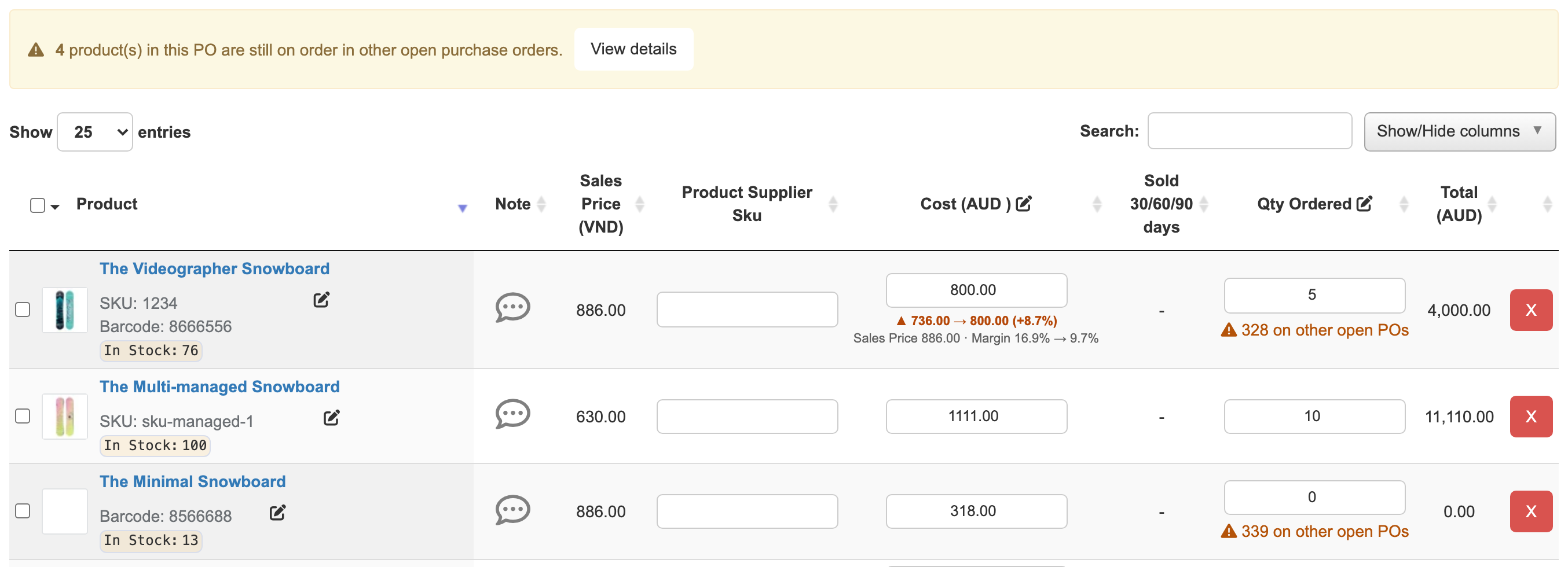
- On the purchase order, a banner and a note under Qty Ordered flag those products.
- In the Confirm Purchase Order window, you see the list one last time before you confirm.
- In the Add products window and on the Add product from Shopify page, you see it before you even add the product.
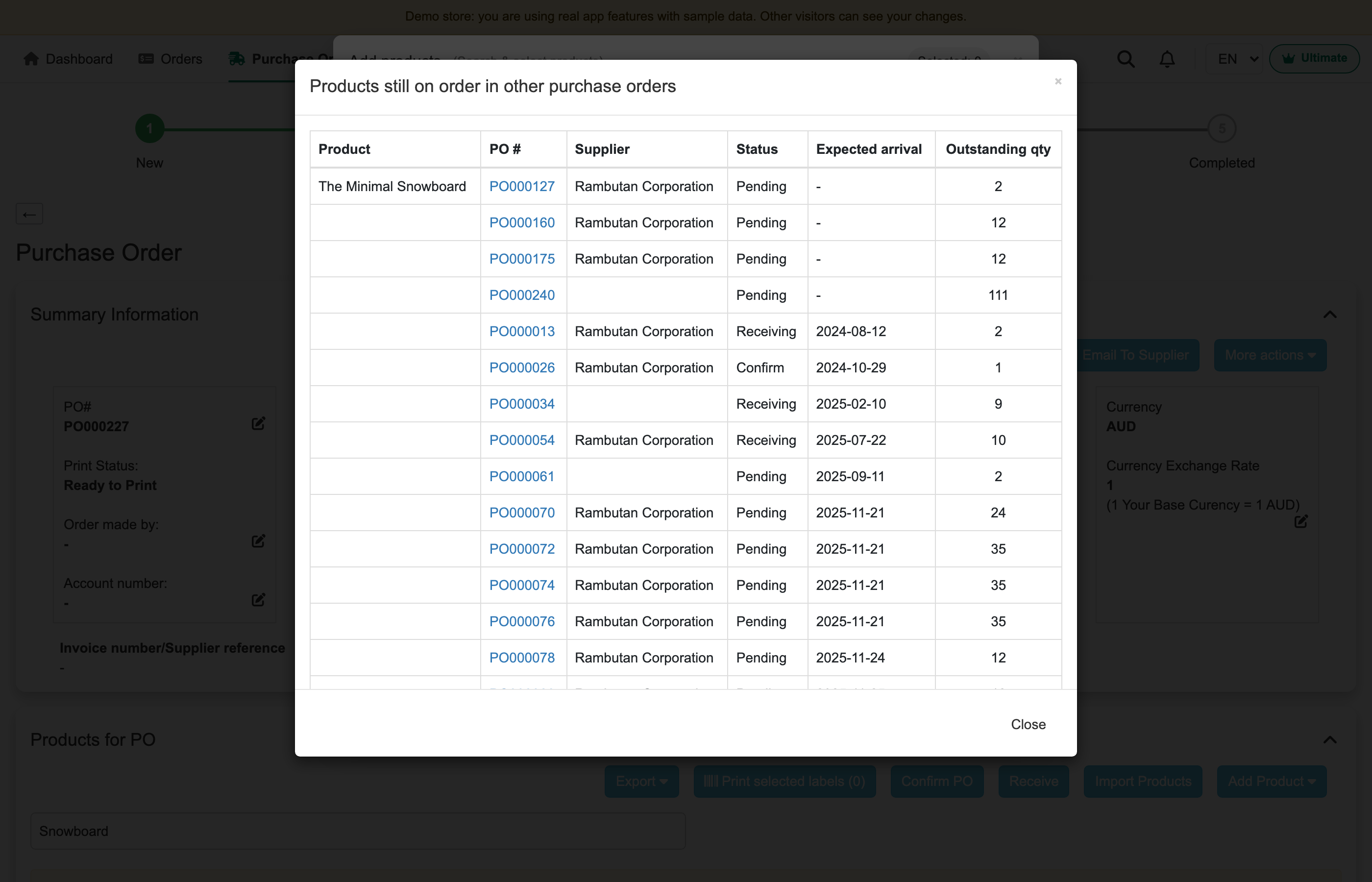
Click any warning to see which POs the units are on, their supplier, status, expected arrival and how many units are still to come.
The app only warns you. You can still add, order and confirm as usual.
The outstanding items warning is available on the Professional and Ultimate plans.
Turn on the warning
- Go to Settings > Purchase orders.
- In Outstanding Items Warning, turn on Warn me when products in a PO are still on order in other open purchase orders.
Your changes save as soon as you make them. The warning is off until you turn it on.

What counts as "still on order"
For each product, the app adds up the units that are ordered but not received yet on your other purchase orders:
Still on order = Qty Ordered − Qty Received, on every other open PO
A PO counts when its status is Pending, Sent to supplier, Supplier Accepted, Supplier Unaccepted, Confirm or Receiving. POs that are Completed, Canceled, Closed or archived don't count, and neither does the PO you're working on.
POs from every supplier and vendor count, because ordering the same product from a different supplier is still ordering it twice. The details window shows the supplier of each PO, so you can tell them apart.
Example: PO000231 from Fyxation is being received (Receiving), but 2 units of The Hidden Snowboard on it haven't arrived yet. Your other open POs have 27 more units of it that haven't arrived. When you add The Hidden Snowboard to a new PO, the app shows 29 on other open POs (2 + 27), even if you have none in stock right now.
On a purchase order
Open a purchase order that you haven't confirmed yet (Pending, Sent to supplier, Supplier Accepted or Supplier Unaccepted). When some of its products are still on order elsewhere:
- A yellow banner above the product list tells you how many products are affected. Click View details to see all of them.
- Under the product's Qty Ordered, an orange note shows how many units are still on order in other POs, for example ⚠ 339 on other open POs. Click it to see the details for that product.
The details window lists each PO with its PO #, Supplier, Status, Expected arrival and Outstanding qty. Click a PO number to open that PO. If the list is long, scroll inside the window.
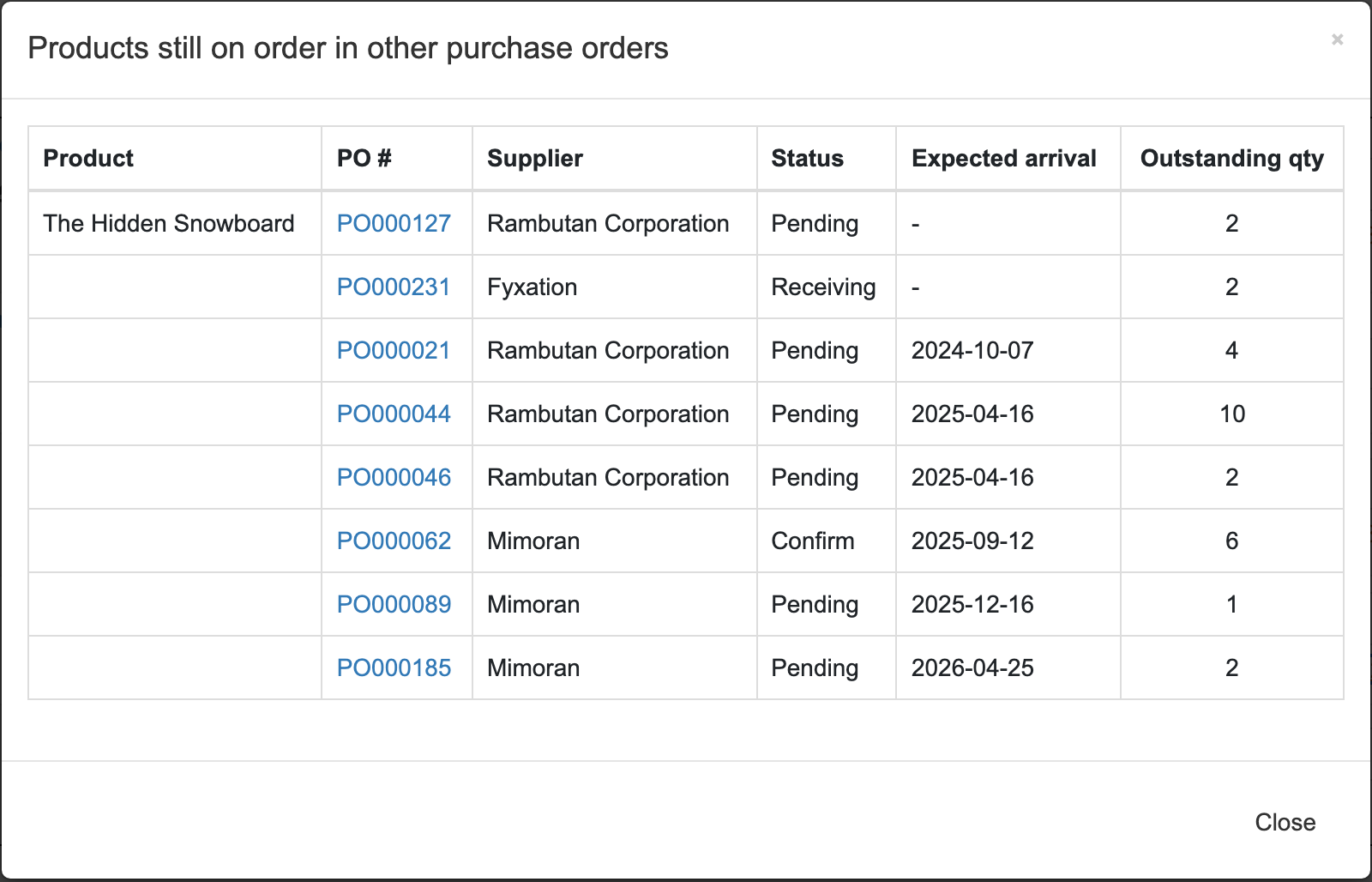
In this example, 29 units of The Hidden Snowboard are still on order across 8 POs: 2 of them on PO000231 from Fyxation, which is already being received.
Once you confirm the PO, the banner and notes no longer show on it.
Before you confirm
When you click Confirm PO, the Confirm Purchase Order window lists the products of this PO that are still on order elsewhere, with the number of units and the PO numbers. Up to 10 products are listed; if there are more, the window shows how many more.
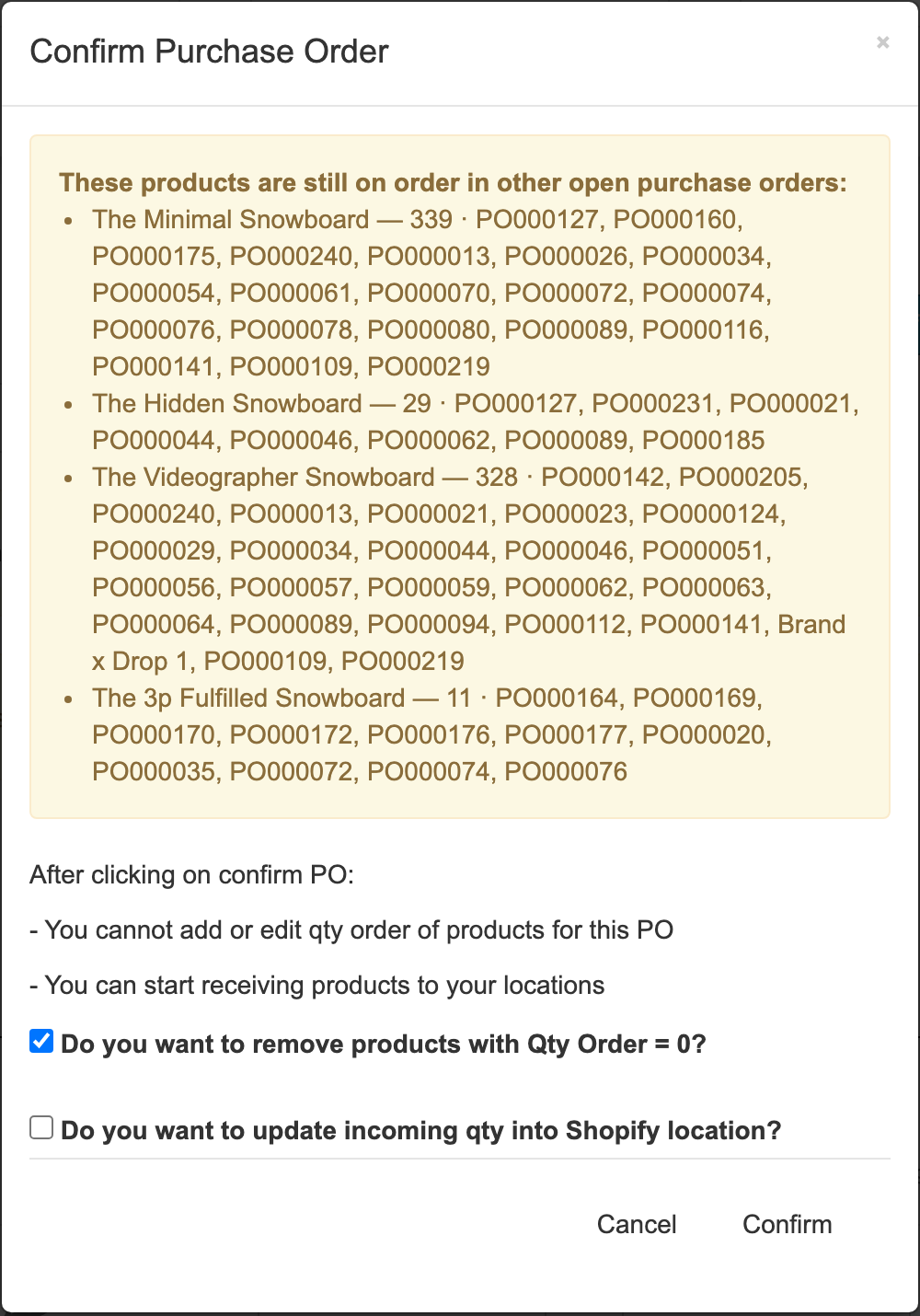
Check the list, lower the Qty Ordered of products you don't need any more, or remove them. If you do want to order them again, for example because you sell fast and need a second delivery, just click Confirm: the warning doesn't block anything.
When you add products
You see the warning before you add a product to the PO, whatever the status of the PO.
Add products window
Type in Search products to add PO... on the purchase order to open the Add products window. Products that are still on order elsewhere show an orange line with the number of units and the first PO numbers, for example ⚠ 29 on other open POs: PO000127, PO000231, PO000021, ….
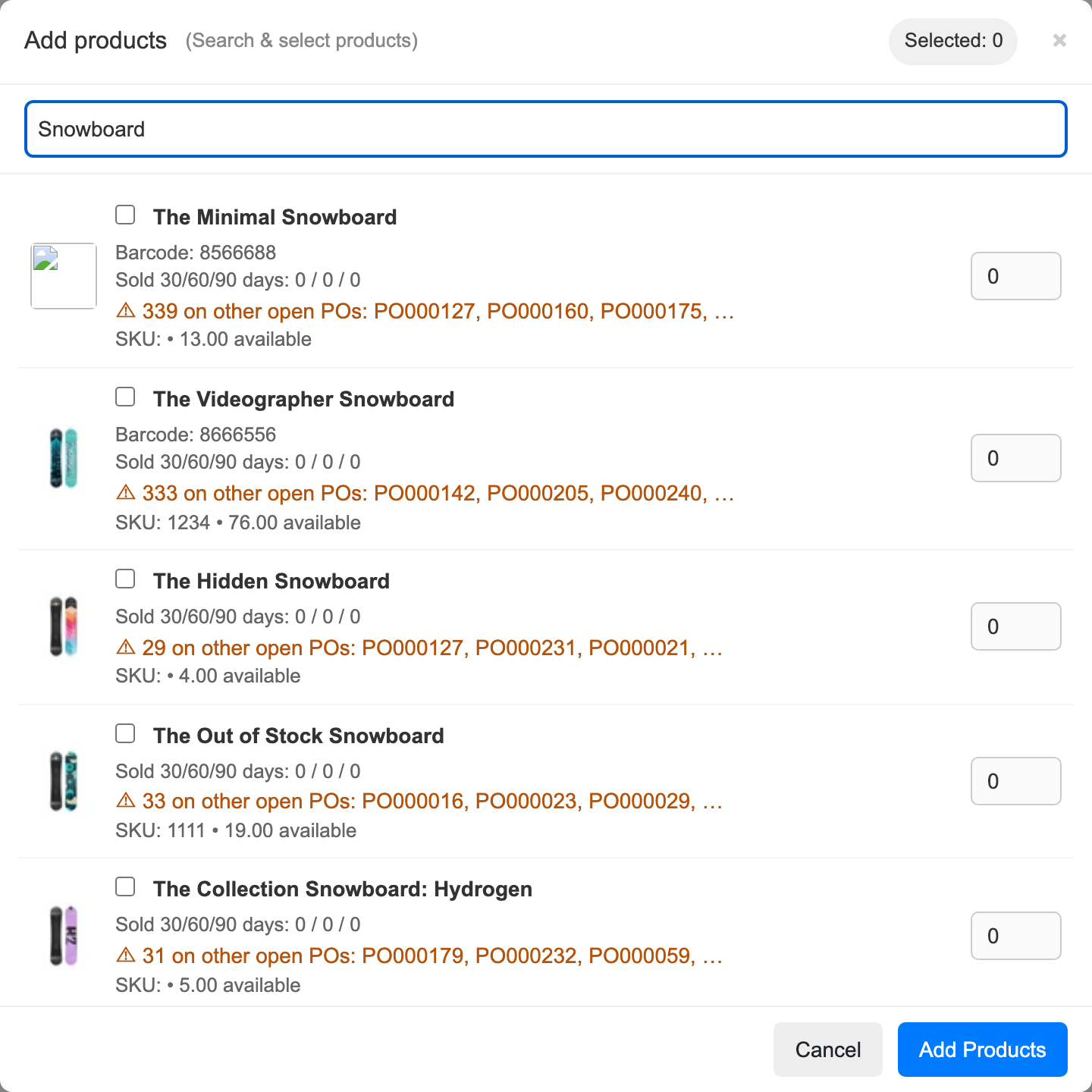
Click the orange line to open the details window. It opens on top of the Add products window. Close it to get back to your search: the products you ticked stay ticked.
Add product from Shopify page
Click Add Product > From Shopify on the purchase order. Under the product name, the same orange line shows the units still on order. Click it to see the details.
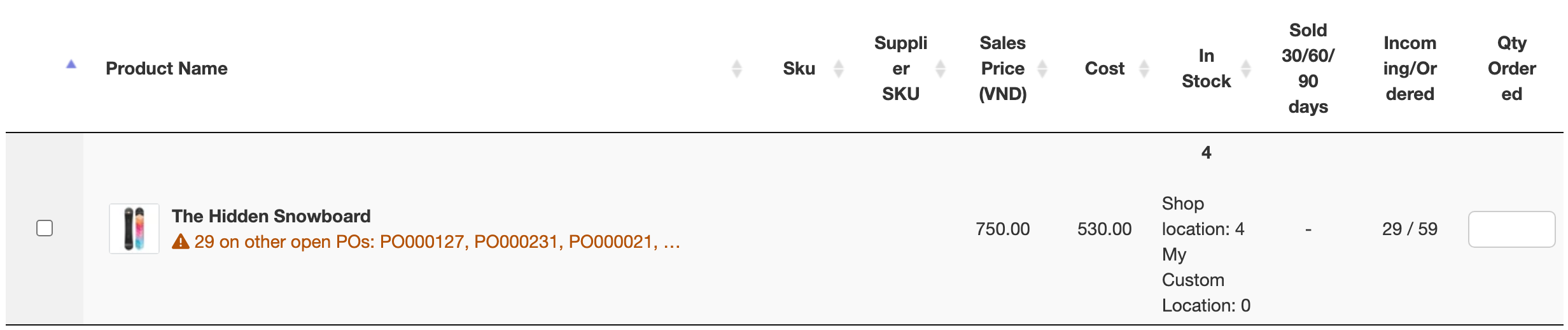
The Incoming/Ordered column on this page is not the same thing: it's available on every plan and shows two totals across your other open POs (units not yet received / units ordered) without telling you which POs they're on.
Good to know
- Products that aren't in Shopify (added with Add Product > Other Products) aren't checked.
- If the same product is on several lines of a PO, its units are added up.
- Received units are those you've received into a location. Units you returned to the supplier aren't added back.
- The numbers are worked out each time you open the page, so they're always up to date with your other POs.
- If you move to the Free plan, the warning stops showing, even if it was turned on.