Import purchase orders from a CSV file
Create many purchase orders at once from one CSV file. Use it to:
- Create new purchase orders in bulk, for example a weekly reorder you prepare in a spreadsheet.
- Move your open purchase orders from another system into the app, with their status and the quantities you already received, so you can keep receiving them here.
The app checks the whole file first and shows you every problem with its line number. Nothing is created until the file has no errors and you click Import.
Open the import page
Go to Purchase Orders and click Import POs (CSV), next to New Purchase Order.

The page explains the main rules and has a Download sample file link. Open Column guide to see every column with a short description.

On the Free plan, the file can't contain more purchase orders than you have left in your monthly limit. If you've reached the limit, the button takes you to the plans page.
Prepare your file
How the app reads the file
- Columns are read by their name, so the order of the columns doesn't matter. Columns the app doesn't know are ignored.
- Column names aren't case sensitive, and spaces count as
_.PO Number,po numberandpo_numberare the same column. - Rows with the same
po_numberbecome one purchase order. Leavepo_numberempty to create one purchase order per supplier, with an automatic PO number. - Information about the purchase order (supplier, location, status, dates...) must be the same on every row of that purchase order. You can repeat it on every row, or fill it only on the first one.
- Only two things are required: the
suppliercolumn, and at least one product code (product_sku,barcodeorproduct_supplier_sku). Every other column is optional.
Purchase order columns
| Column | What to put in it |
|---|---|
po_number | The PO number. It must not exist in the app yet. Empty: an automatic number. |
supplier | Required. The supplier name as it is in the app. If there's no such supplier, the app looks for a vendor with that name in your Shopify products. If neither exists, the purchase order is still created and keeps the name you wrote. |
location | The name of a location in Shopify, for example Shop location. The app fills the ship-to name and address from it. Empty: the default address in Settings. |
ship_to_name, ship_to_address | Optional. A different name and address to deliver to, used instead of the location address. Receipts still use the location. |
status | pending, sent, accepted, confirm, receiving, completed, canceled or closed. Values like SENT, PARTIALLY_RECEIVED and RECEIVED from other systems also work. Empty: calculated from qty_received (see below). |
po_date, expected_date | Dates in the format you pick on the page. Empty po_date: today. |
currency | 3-letter code, for example USD. Empty: the supplier's currency, then the currency in Settings. |
po_reference | Your reference or the supplier's invoice number. |
po_shipping | Shipping amount for the whole purchase order, for example 25. |
po_discount | Discount for the whole purchase order. 5% is a percentage, 50 is an amount. |
po_tax_percent | Tax % for the whole purchase order, for example 8. |
po_total | Optional. Only used to check your file: if it doesn't match the sum of the lines, you get a warning. |
Product line columns
| Column | What to put in it |
|---|---|
product_sku, barcode, product_supplier_sku | At least one. The app looks for the product by SKU, then by barcode, then by supplier SKU. A product that isn't in Shopify is added as a custom line. |
product_name, variant_name | Used when one SKU matches several products in your store. Default Title is treated as empty. |
qty_ordered | Quantity ordered. Empty: 0. |
qty_received | Quantity already received (see Move open purchase orders from another system). |
received_date | Date of that receipt. Empty: the day you import. |
unit_cost | Unit cost. 1,234.50, 12,5 and $8.50 all work. |
item_discount_percent, item_tax_percent | Discount % and tax % for this line only. |
Here is a short file with two purchase orders. The second one has no PO number, so the app gives it one:
po_number,supplier,location,status,po_date,expected_date,po_shipping,po_discount,po_tax_percent,product_sku,qty_ordered,unit_cost
PO-2001,Blue Mill Supplies,Main warehouse,sent,2026-11-15,2026-11-30,25,5%,8,SKU-001,20,5.50
PO-2001,Blue Mill Supplies,Main warehouse,sent,2026-11-15,2026-11-30,25,5%,8,SKU-002,20,5.50
,Northwind Knits,,,2026-11-15,,,,,SKU-010,12,2.80
If a value contains a comma, like an address, put it in double quotes: "88 King St, Toronto ON". Excel and Google Sheets do this for you when you save as CSV.
Dates
Pick the format your file uses in Date format before you click Check file: YYYY-MM-DD, MM/DD/YYYY or DD/MM/YYYY. All the dates in the file must use the same format. The app doesn't guess, because 03/04/2026 could be March 4 or April 3.
Shipping, discount and tax
These columns work exactly like the shipping, discount and tax boxes on a purchase order:
- The line total is unit cost × quantity, minus the line discount %, plus the line tax %.
- The PO discount and the PO tax % are calculated on the sum of the lines. Shipping is added at the end.
Example 1, tax for the whole PO: two lines of 10 × $10 = $200, po_discount = 5%, po_tax_percent = 10, po_shipping = 15.
Discount = 200 × 5% = $10. Tax = 200 × 10% = $20. Total = 200 − 10 + 20 + 15 = $225.
Example 2, tax per line: one line of 10 × $10, item_discount_percent = 10, item_tax_percent = 8.
Line total = 100 × (1 − 10% + 8%) = $98.
Use either po_tax_percent or item_tax_percent in one purchase order, not both: if you fill both, the app shows an error. If you use tax per line only, the PO tax is set to 0 so your default tax isn't added on top. If you fill neither, the app applies your default tax, like when you create a purchase order by hand. If Calculate tax for shipping is on, tax is also added to shipping (learn more).
Move open purchase orders from another system
Export your open purchase orders from the other system to CSV, one row per product, and import the file as it is:
- The app already understands the column names most systems use, for example
PO Number,Vendor,Location,PO Status,PO Date,Expected Date,PO Total,Item SKU,Item Title,Item Variant,Qty Ordered,Qty ReceivedandUnit Cost. Columns it doesn't need, likeQty Invoiced, are ignored. - Pick the Date format your export uses, often
MM/DD/YYYY. - Check that the location names in the file are the exact names of your locations in Shopify.
Status
The status in your file is kept as it is, even if it doesn't match the received quantities. For example, a PO marked SENT stays Sent to supplier even if everything was received; you can change it in the app afterwards.
| In your file | In the app |
|---|---|
pending, draft | Pending |
sent, sent to supplier | Sent to supplier |
accepted / unaccepted | Supplier Accepted / Supplier Unaccepted |
confirm, confirmed | Confirm |
receiving, partially received | Receiving |
completed, received | Completed |
canceled, cancelled / closed | Canceled / Closed |
If the status is empty: Completed when every line is fully received, Receiving when part of it is, Pending when nothing is.
Received quantities
qty_received records what you already received in the other system:
- The app creates one receipt per
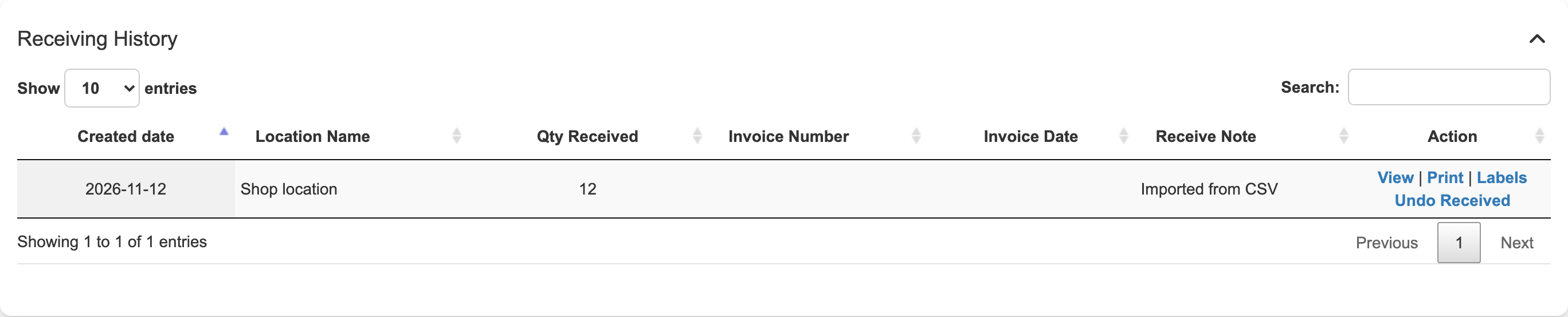
received_date, at the purchase order's location, with the note Imported from CSV. You see it in Receiving History on the purchase order. - Your Shopify inventory doesn't change, because those units are already in stock. Cost, price and cost of goods sold aren't updated either.
- Receiving more than ordered is allowed. You get a warning so you can double-check.
- When the rest of the goods arrive, receive them in the app as usual.
Undo Received on an imported receipt works like on any other receipt: if the receipt has a location, the app subtracts the quantity from your Shopify inventory at that location. Only undo an imported receipt if the goods really aren't in stock.
Check your file
Choose your file, pick the Date format, and click Check file. The app reads the whole file without creating anything and shows:
- A summary: number of purchase orders, lines, errors and warnings.
- One row per purchase order. Click a row to see its lines and the errors or warnings, each with its line number in your file.
- Only purchase orders with errors or warnings to hide the ones that are fine. Big files are shown 50 purchase orders per page.
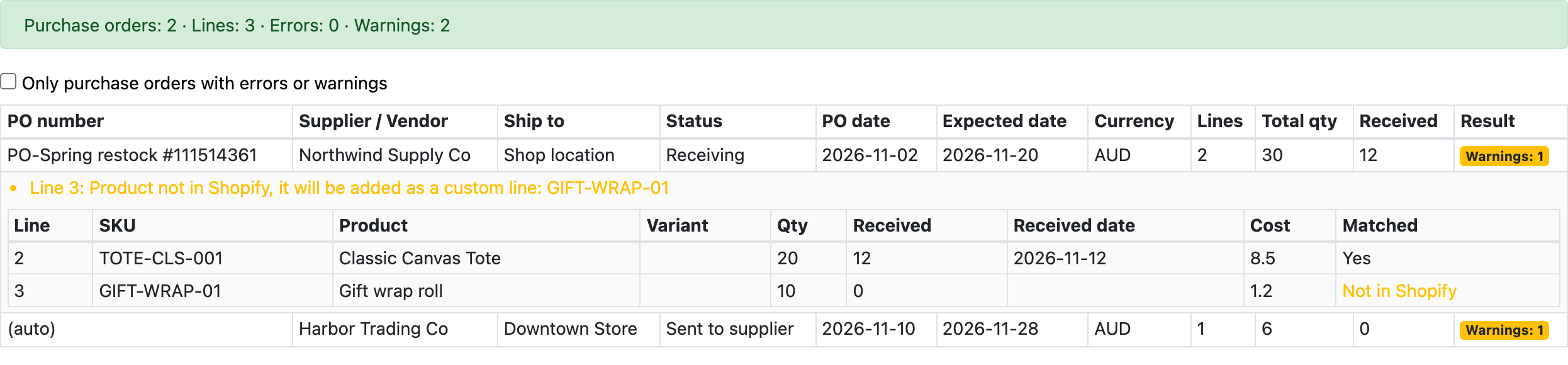
Warnings don't stop the import. They tell you about something you may want to check, for example a product that isn't in Shopify and will be added as a custom line, or a supplier that isn't in the app.
Errors stop the import: as long as the file has one error, the Import button doesn't appear. Fix your file and click Check file again.
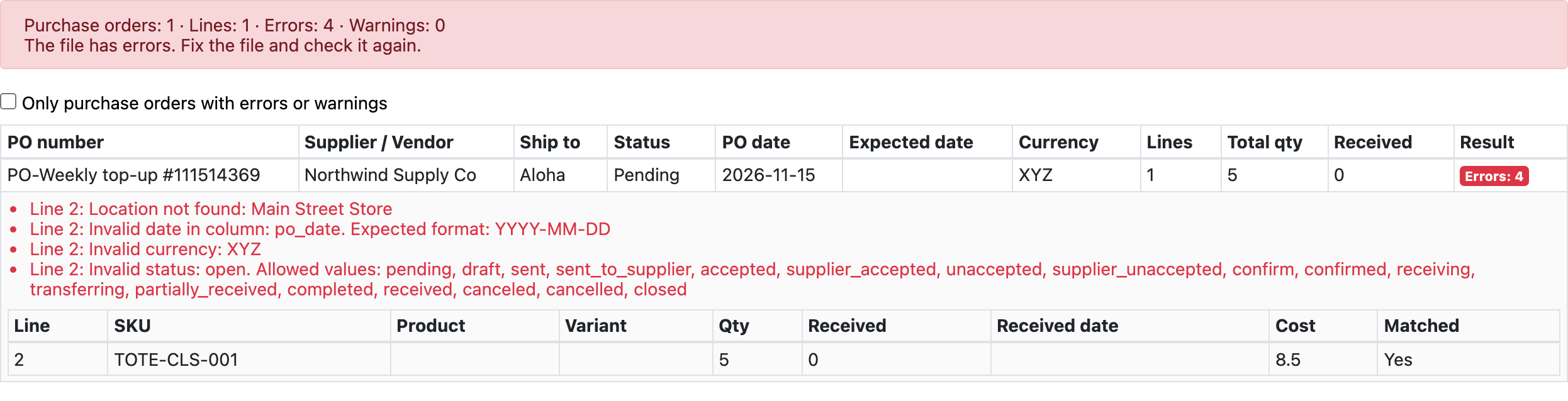
Common messages
| Message | What to do |
|---|---|
Location not found | Use the exact name of a location in Shopify, or leave location empty. |
Invalid date in column ... Expected format ... | Pick the right Date format, or fix the date. Every date in the file must use the same format. |
Invalid currency | Use a 3-letter currency code, for example USD, EUR or AUD. |
Invalid status | Use one of the values listed in the message. |
PO number already exists | The app already has a purchase order with this number. Change the number, or leave it empty for an automatic one. |
Different values in the same purchase order for column | Rows with the same po_number have different values in a purchase order column, for example two suppliers. Make them the same. |
Use either po_tax_percent or item_tax_percent | Keep only one kind of tax for this purchase order. |
Invalid number in column | Use plain numbers, for example 12.5. Negative numbers aren't allowed. |
Contains an unsupported character | Remove the \ character, or the ' character from the PO number. |
Missing column: supplier | Add a supplier (or Vendor) column. |
Supplier or vendor not found (warning) | The purchase order keeps the name from your file. Create the supplier in the app first if you want it linked. |
Product not in Shopify (warning) | The line is added as a custom line with the SKU and name from your file. |
Duplicate product, quantities merged (warning) | The same product appears twice in one purchase order. If multiple lines for the same product is off in Settings, the quantities are added up on one line. |
Received more than ordered (warning) | Check the quantities. The import still records them. |
po_total does not match the sum of lines (warning) | The other system's total probably includes shipping or tax. Check the purchase order after the import. |
Import
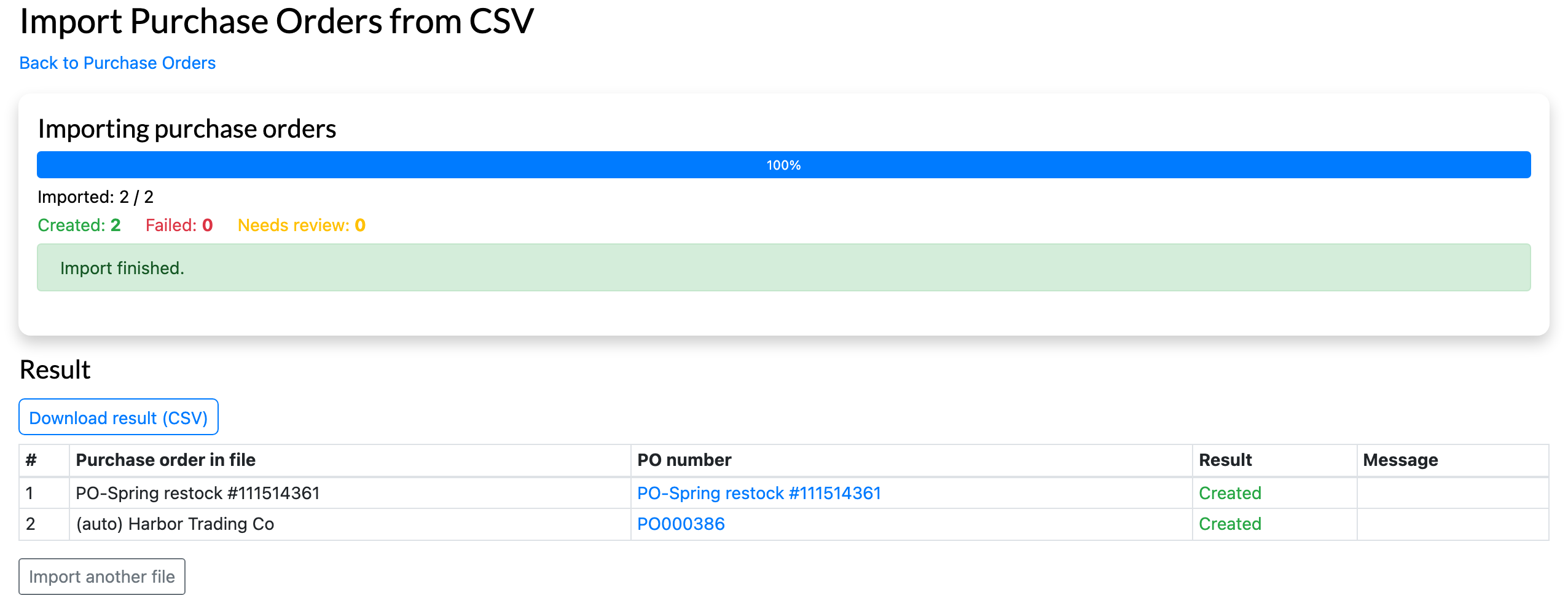
Click Import N purchase orders. The app creates the purchase orders in small batches and shows the progress: how many are Created, Failed or Need review.
- Pause stops after the current batch. Continue goes on.
- If your connection drops, the app tries again by itself, then shows Continue.
- If you close the page, the import stops. When you open the page again, a message says An import is not finished: click Continue to create the rest, or Cancel remaining to stop there. Purchase orders are never created twice, even if you open the page in two tabs.
When it's done, the result lists every purchase order from your file with its number in the app, as a link. Click Download result (CSV) to keep the list.
| Result | Meaning |
|---|---|
| Created | The purchase order is in the app. |
| Failed | It wasn't created, with the reason, for example a PO number someone created in the meantime. Fix it and import only that purchase order again. |
| Needs review | The import stopped while creating it, so it may be missing lines. Open it from the link and check it. |
| Canceled | You clicked Cancel remaining before it was created. |
After the import
Imported purchase orders work like any other purchase order. On the Purchase Orders list, the Shopify Order column shows CSV import, so you can find them.
On the purchase order, the progress bar shows the status from your file:

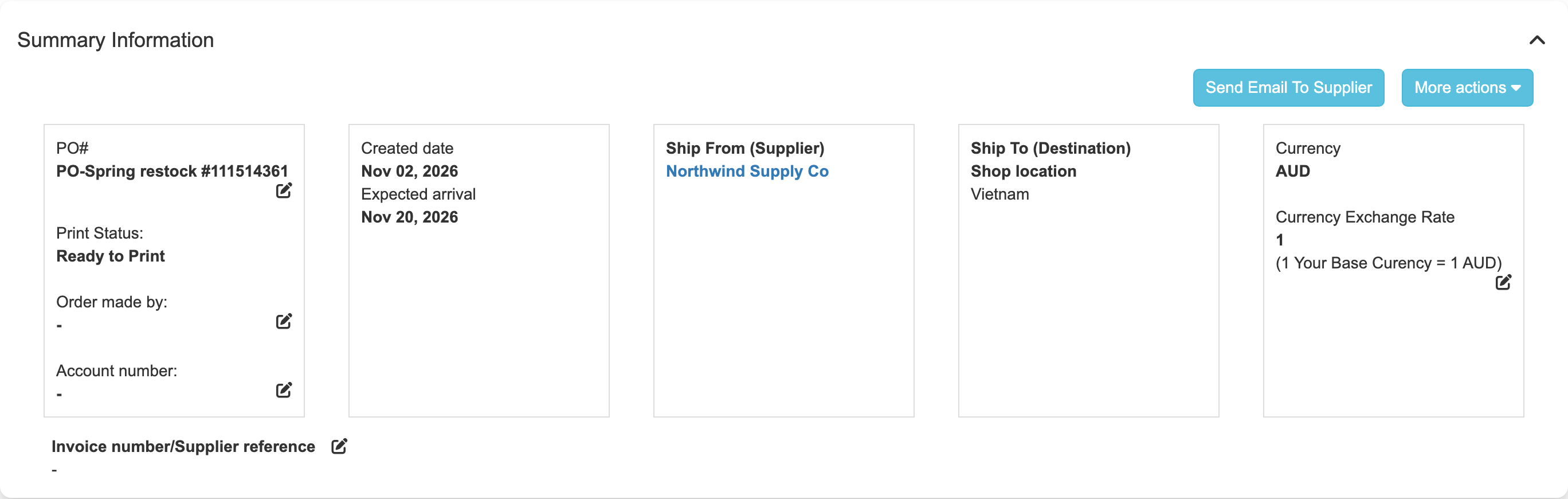
The supplier, dates, ship-to address and currency come from your file:
History shows Created from CSV import:

If the file had received quantities, Receiving History shows the imported receipt with its date, location and the note Imported from CSV:
What the import doesn't do
- It doesn't change your Shopify inventory or incoming quantities.
- It doesn't update product cost or price in Shopify, or cost of goods sold.
- It doesn't send any email to your suppliers.
- It doesn't send imported purchase orders to Xero, even if you edit them later, because purchase orders moved from another system are usually already there. Purchase orders you create in the app are still sent as usual.
Limits
- Up to 10,000 rows, 1,000 purchase orders and 10 MB per file. For more, split your file.
- Save your file as CSV (comma or semicolon separated). Excel files (
.xlsx) aren't supported: in Excel, use File > Save As > CSV.
FAQ
Can I import into a purchase order that already exists? No, every purchase order in the file is a new one. To add products to an existing purchase order, use Import products to purchase order.
I imported the same file twice. Do I get duplicates?
Purchase orders with a po_number aren't created again: the second check shows PO number already exists. Purchase orders without a po_number get a new automatic number each time, so they would be created again.
Why does my imported purchase order have a different total than in my old system?
Your old system's total may not include tax, while the app adds your default tax when the file has no tax column. Add po_tax_percent with 0 to keep the total without tax.
Can I import received quantities for a purchase order that has no location? Yes. The receipt is recorded without a location. Undo Received on it only changes the received quantity in the app.